Settings & Features
Open Settings from the sidebar. It holds the feature on/off switches, appearance, keyboard shortcuts, and the entry points to the power features documented below.
Feature toggles
Most non-core features can be switched off to declutter the UI. Core features (boards, lists, cards, search, theme) have no switch and are always available. Turning a feature off hides its UI and stops its background work, but keeps your data — turn it back on and everything returns.
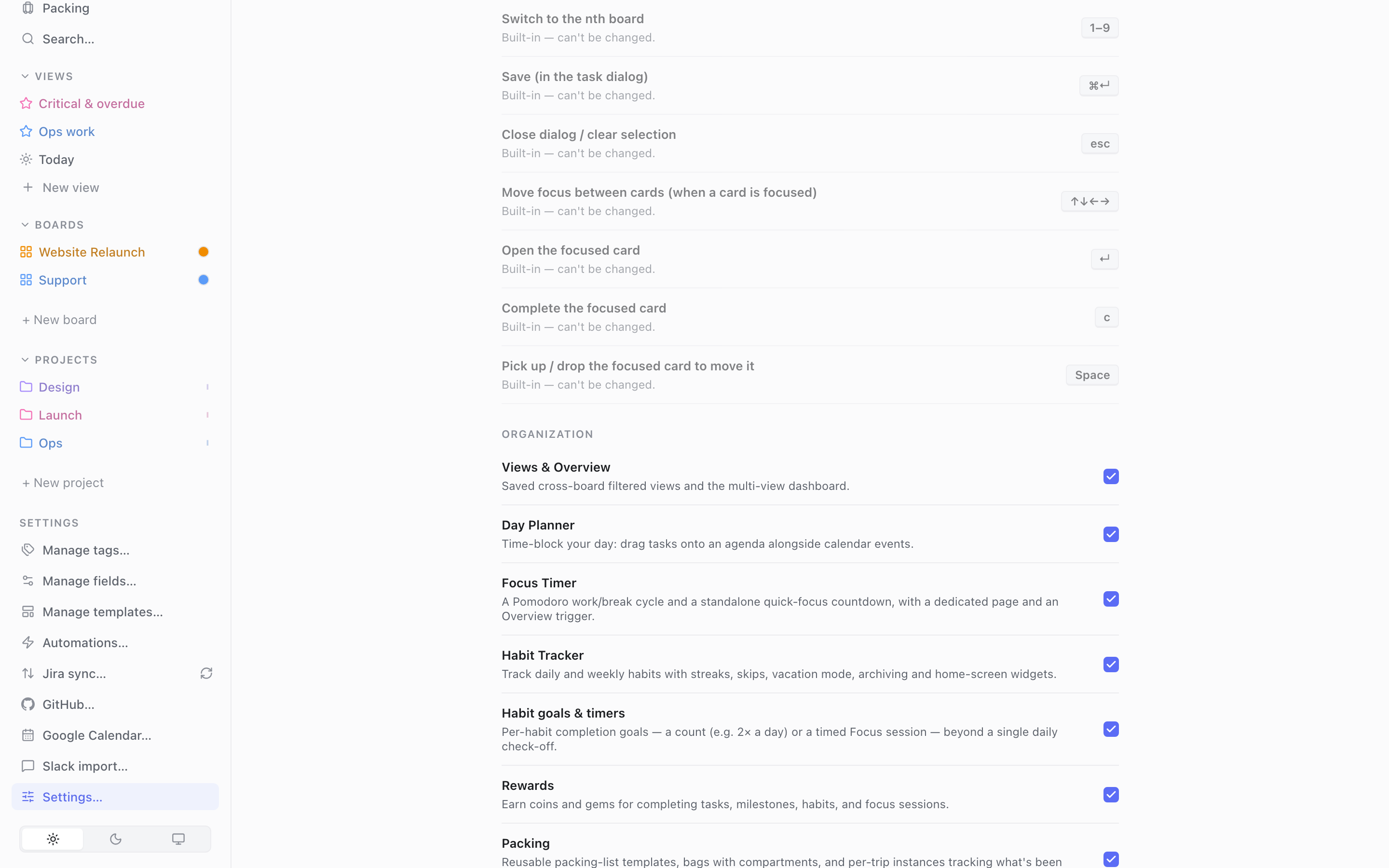
Organization
| Feature | What it controls |
|---|---|
| Views & Overview | Saved cross-board filtered views and the multi-view dashboard. |
| Day Planner | Time-block your day: drag tasks onto an agenda alongside calendar events. |
| Focus Timer | A Pomodoro work/break cycle and a standalone quick-focus countdown — see Power features → Focus Timer. |
| Habit Tracker | Track daily and weekly habits with streaks, skips, vacation mode, and archiving — see Habits. |
| Habit goals & timers | Per-habit completion goals — a count (e.g. 2× a day) or a timed focus session — beyond a single daily check-off. See Habits. |
| Rewards | Earn coins and gems for completing tasks, milestones, habits, and focus sessions — see Power features → Rewards. |
| Packing | Reusable packing-list templates, bags with compartments, and per-trip lists tracking what's been used or consumed — see Packing. |
| Quick Add | The keyboard-triggered popup to capture a task with date, priority, labels, and destination. |
| Projects | Group tasks into projects with sequential or parallel ordering. |
| Task Dependencies | Mark a task as blocked until one or more other tasks are done. |
| Tags | Color-coded labels you can attach to tasks across boards. |
| Board-scoped Tags | Restrict a tag to specific boards instead of making it available everywhere. |
| Custom Fields | Structured metadata (select, text, number…) shown on cards. |
| Checklist | A simple checklist of done/not-done sub-items inside a task. |
| Task Duration | Plan how long a task should take and track logged vs. planned time. |
| Flexible Tasks | Mark a task flexible: roll its do date to today or expire it automatically instead of going overdue. |
| Reminders | Get notified before a task's time, or repeatedly while a task sits untouched. |
| Templates | Reusable task blueprints applied with the ~name quick-add token. |
| List Templates | A list's default template fills in unset fields on every task created in it. |
| Automations | Event-driven actions that run when tasks are created or completed. |
| Column Rules | Automatically color cards in a list based on filter rules. |
| Card Right-Click Menu | Right-click a task card for quick actions: date, priority, project, milestone, tags, fields. |
| View Right-Click Menu | Right-click a sidebar view for quick actions: edit, add/remove from Overview, delete. |
| Milestone Right-Click Menu | Right-click a milestone for quick actions: create task, complete, delete. |
Integrations
| Feature | What it controls |
|---|---|
| Jira Sync | Two-way sync that imports Jira issues into columns. |
| GitHub Status | Show branch/PR status on Jira-linked cards (read-only). |
| Google Calendar | Two-way sync of tasks and calendar events. |
| Slack Import | Turn Slack messages into tasks from their permalink. |
| Obsidian Bases | Bind a task to an Obsidian base + view; shows Next up / Remaining (desktop only). |
See Integrations for setup.
Advanced
| Feature | What it controls |
|---|---|
| Command-Line Tool | Lets you install the clarity command in your terminal (macOS only) so scripts and AI assistants can read/write your tasks directly. Nothing is installed until you ask for it in Settings. See Integrations → AI assistant (CLI). |
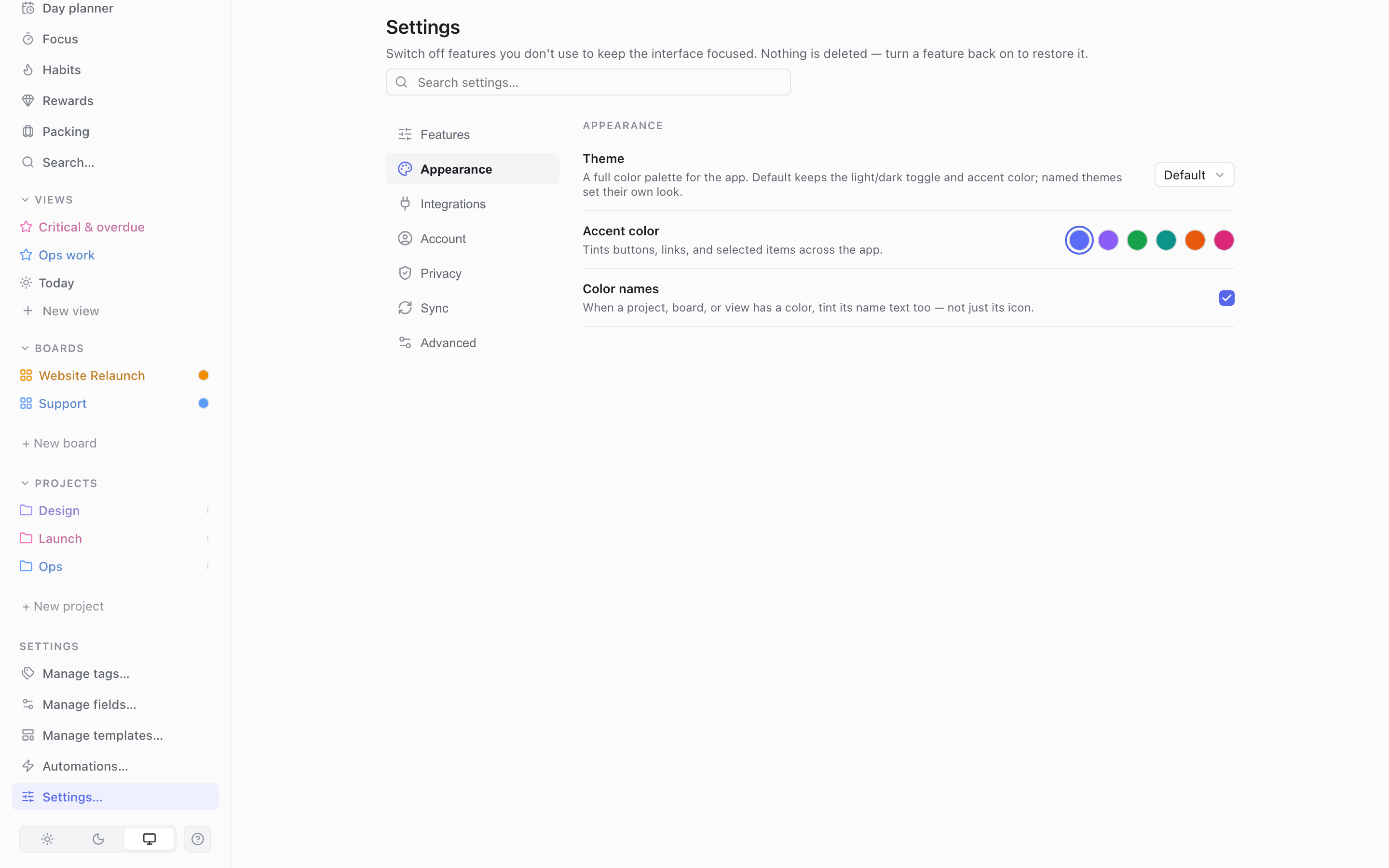
Appearance
- Theme — choose a preset: Default, Dracula, Nord, Tokyo Night, Solarized Light, or Gruvbox. Some are light, some dark.
- Light/Dark + Accent — when using the Default theme you also get a light/dark toggle and an accent color: Blue, Purple, Green, Teal, Orange, or Pink.
Keyboard shortcuts
Global shortcuts (all rebindable here):
| Default key | Action |
|---|---|
| n | New task — focus the first list's quick-add |
| a | Open the Quick Add popup |
| t | Cycle theme (light / dark / system) |
| ? | Show the shortcuts cheat-sheet |
| [ | Previous board |
| ] | Next board |
Reserved shortcuts (shown for reference, not rebindable): 1–9 switch to the nth board, ⌘↵ save in the task dialog, Esc close dialog / clear selection.
To rebind: click a shortcut row in Settings, press the new key combo, and it's saved. Combos that clash with reserved shortcuts are blocked. Press ? anytime to see the current bindings.
Power features
Each below lists what it does · how to use it · when it shows up · a use case.
Reminders
- What: native notifications for a task. Two kinds: time-based (fire before the task's do/deadline time, or at a custom moment) and activity (re-fire on an interval while the task sits untouched).
- How: open a task → Reminders. For time reminders pick an anchor (do date, deadline, or custom) and an offset (on time, 30 min, 1 hour, 1 day before…). For activity reminders set the repeat interval.
- When: delivered as OS notifications while the app is running.
- Use case: "remind me 1 hour before this deadline", or "nudge me every day until I touch this."
Recurring tasks
- What: a task that regenerates the next occurrence when you complete it.
- How: open a task → Recurrence, then set:
- Frequency and interval — daily / weekly / monthly / yearly, with a step (e.g. every 3 months = quarterly).
- Which days — for weekly, pick the weekdays; for monthly, pick a day-of-month or an "nth weekday" like last Friday.
- End rule — never, until a date, or after N times.
- Mode — schedule keeps the next occurrence on a fixed cadence no matter when you finish; completion counts the interval from whenever you actually complete the task.
- When: the next occurrence appears when you mark the current one done.
- Use case: weekly reports, quarterly reviews, "water the plants every 3 days."
Flexible tasks
- What: an opt-in mode for tasks whose do date you don't fully control — "nice to have, not a must." A flexible task never shows as overdue in Today/Overview or on the board. Instead, once its do date passes while it's still incomplete, it's either rolled forward to today (repeating this until you complete it) or expired (deleted). If the task also has a real deadline, that's unaffected — it still shows as overdue normally.
- How: open a task → Flexible → choose Off, Roll to tomorrow if missed, or Expire if missed. Also filterable in CQL/views (
flexibility is roll,flexibility is set, …). - When: checked about once a minute while the app is open — there's no fixed midnight job, so a roll or expiry happens the next time the app checks after the day changes.
- Use case: "donate blood" — something you want to do but can't schedule precisely (no blood drive yet, no free slot) — set to Roll so it keeps surfacing as today's work without ever guilt-tripping you as overdue.
Templates
- What: reusable task blueprints.
- How: Templates manager — set a title prefix, notes, default priority, default project/milestone, default tags, default custom-field values, and date offsets (start/do/deadline relative to the day you create the task). Apply a template by typing
~templatenamein Quick Add, or from a list's menu. - When: applied at task creation.
- Use case: a "Bug report" template that pre-fills priority, tags, and a notes checklist.
Custom Fields
- What: structured metadata on tasks — types text, number, date, or select (with options).
- How: Fields manager — create fields and toggle Show on card (renders in card metadata) and Quick edit (editable from the card's hover row). Set values per task in the editor.
- When: appear on cards/editor wherever enabled.
- Use case: an "Effort" number field you can sort, filter (
field:"Effort" >= 3), color cards by, and total with Column Rules.
Automations
-
What: event-driven actions that run automatically.
-
How: in the Automations manager, pick a trigger (task created or completed), an optional filter to narrow which tasks qualify, and one or more actions:
- update fields (priority, dates, notes, project, add/remove tags),
- move to a board + list,
- complete the task, or
- create from a template (the new task's title can include
{{title}}, the trigger task's title).
You can enable/disable each automation and set the order they run in.
-
When: fire on the matching create/complete event. Automation-caused events don't re-trigger automations, so they can't loop.
-
Use case: "when a task is completed, create a follow-up from the Review template"; "when a P1 task is created, move it to the Now list."
Column Rules
- What: per-list alerts that color the list when it gets overloaded.
- How: Column Rules editor for a list — choose a metric (task count, or sum of a number custom field), an operator (greater/less than), a threshold, an optional filter to scope which tasks count, and a color. The first matching rule wins.
- When: the list outline takes the rule's color while the condition holds.
- Use case: turn the Doing list red when it holds more than 5 tasks (WIP limit), or when total Effort exceeds your capacity.
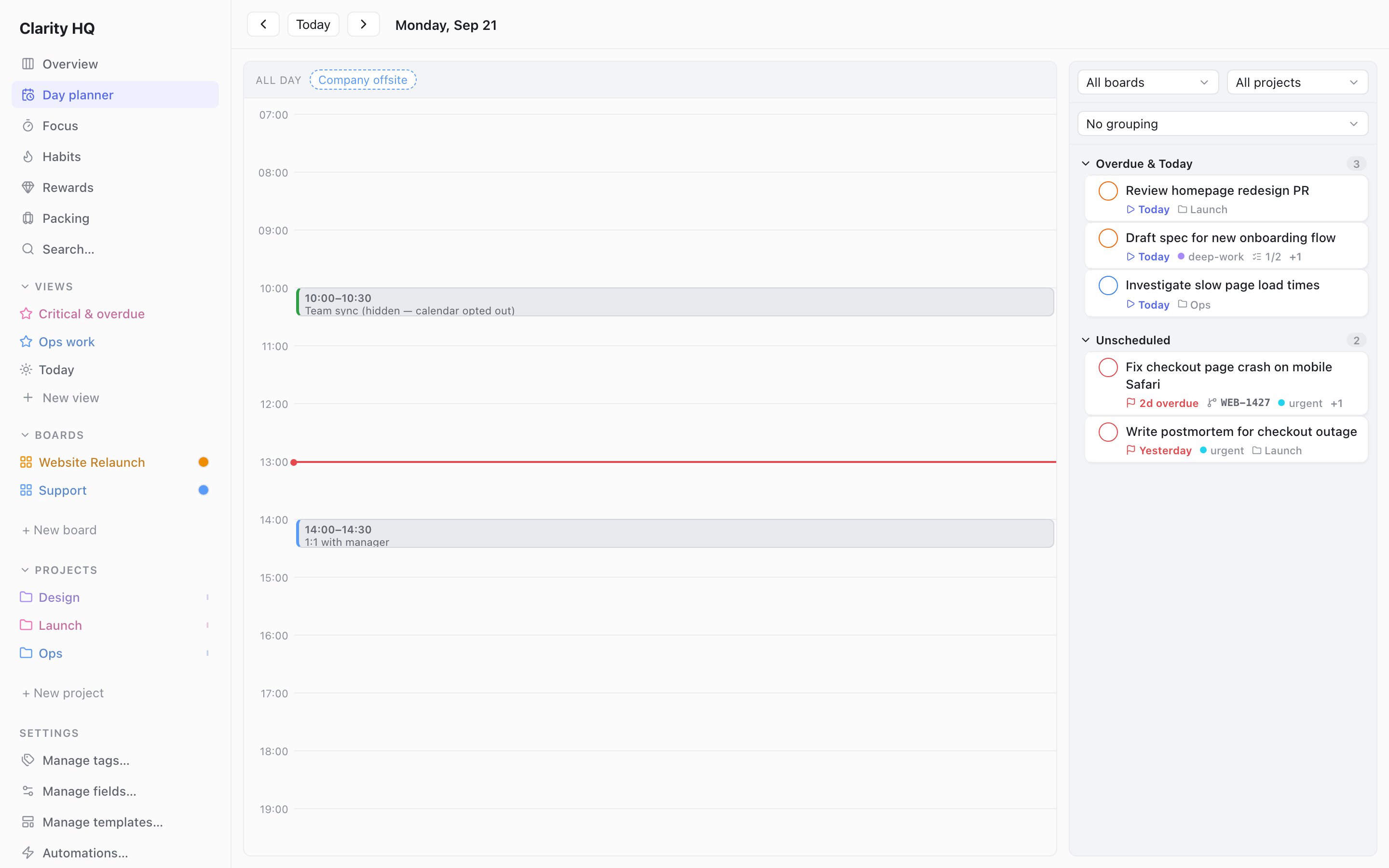
Day Planner
- What: a time-blocking view for a single day.
- How: open Planner. The right-hand pane lists tasks that need scheduling; the main area is a 24-hour timeline showing your Google Calendar events (if synced) and focus sessions. Drag a task onto the timeline to schedule a session; drag to a trash zone to remove it; use the arrows to change day.
- When: it's its own view, opened from the sidebar.
- Use case: plan your day by dragging today's tasks into real time slots around your meetings. Sessions can sync to Google Calendar — see Integrations.
Projects
- What: group a board's tasks into projects, with an ordering discipline.
- How: create projects (each has a color and icon). Assign tasks via the editor, Quick Add
@project, or the bulk bar. Choose sequential (tasks unlock one after another) or parallel (all available at once). Switch the project view between List and Timeline (Gantt); on the timeline you can drag milestone/task dates to reschedule. - When: projects appear as a filter in the board header and as a grouping in views.
- Use case: run a multi-step initiative where some work must happen in order, and see it on a timeline.
Focus Timer
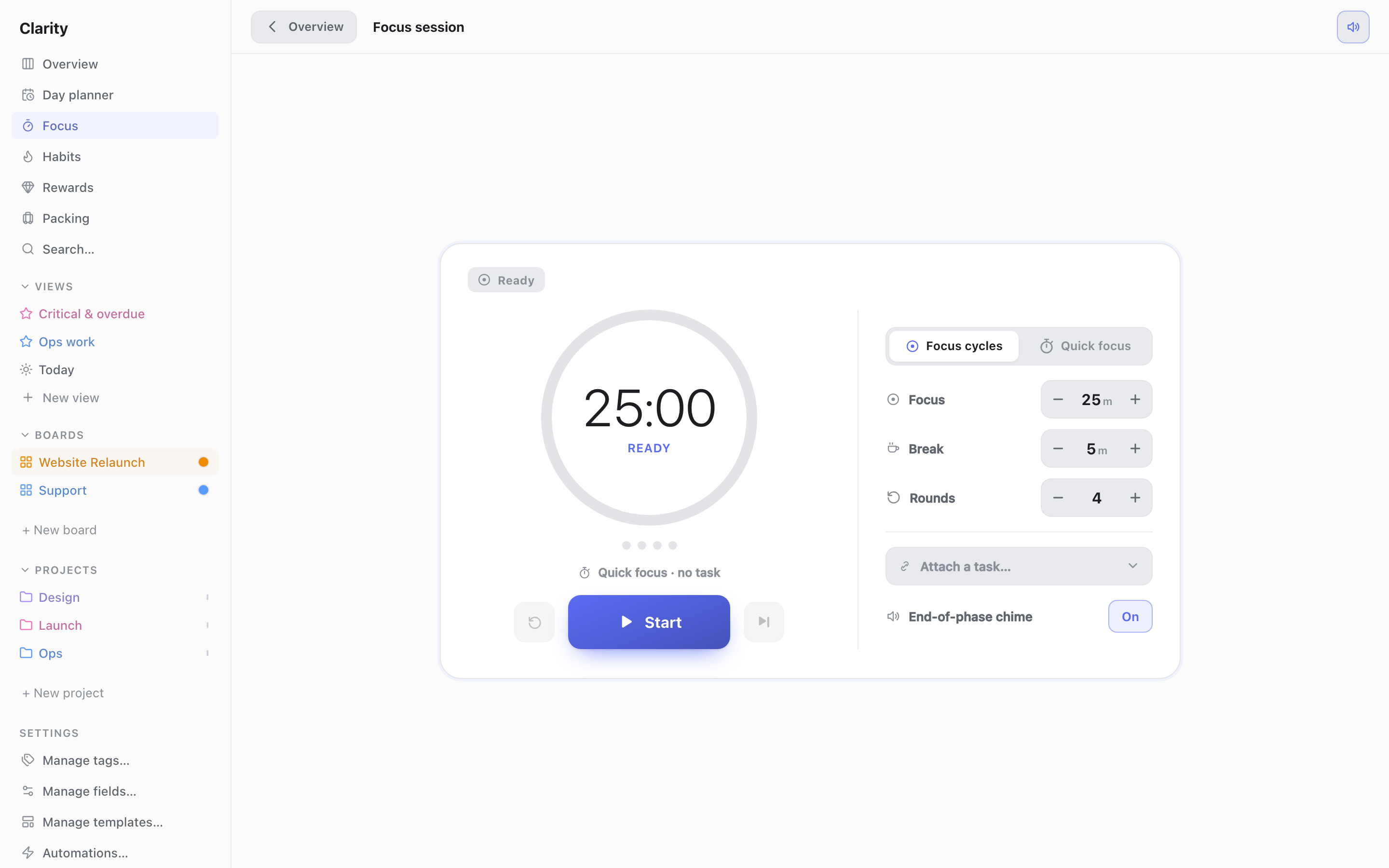
- What: a Pomodoro-style focus timer with two modes: Focus cycles (repeating work/break rounds, e.g. 25m focus / 5m break for 4 rounds, then stops) and Quick focus (a single countdown with no breaks). The timer pauses automatically between phases so you have to actively start the next one.
- How: open Focus in the sidebar, or click the Focus button on the Overview toolbar. Pick a mode with the Focus cycles / Quick focus toggle. In Focus cycles, set Focus, Break, and Rounds with the +/- steppers. In Quick focus, pick a duration preset (5/15/25/45 min) or type a custom number of minutes. Optionally click Attach a task… to link the session to a task (shown while focusing as "Focusing on <task>"). Toggle the end-of-phase chime on/off. Press Start, Pause, Skip, or Reset to control the session.
- When: the Overview toolbar button turns into a live pill (progress ring, countdown, phase label, inline pause) the moment a session is running, so you can see it while working anywhere else in the app. A habit with a timer goal can also launch a session directly — see Habits.
- Use case: run 4×25-minute focus blocks with 5-minute breaks while working through a task list, or start a one-off 15-minute Quick focus before a meeting.
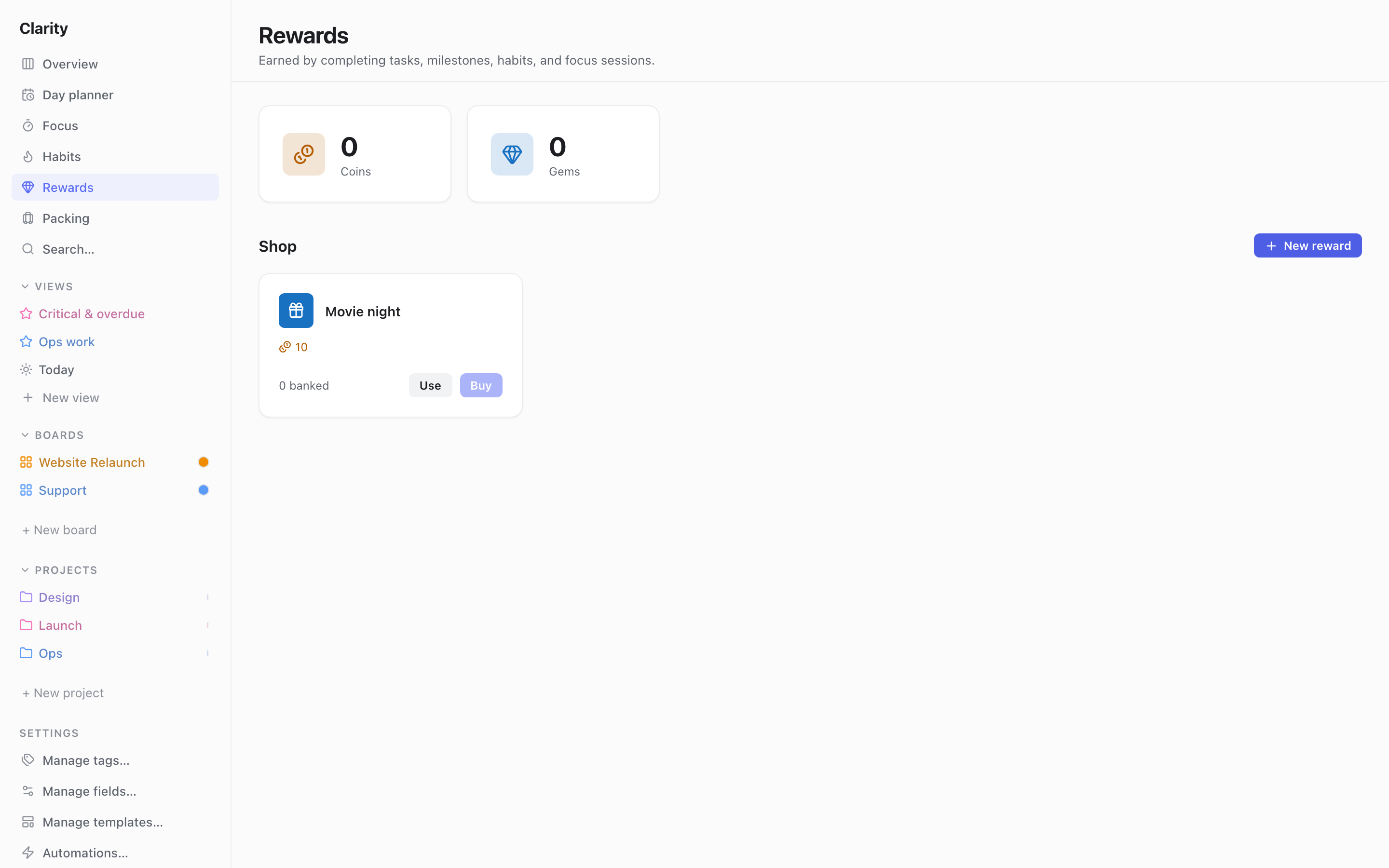
Rewards
- What: an optional coins-and-gems system that pays out automatically as you complete work, plus a shop where you spend that balance on rewards you define for yourself.
- How: open Rewards in the sidebar to see your Coins and Gems totals and the Shop. Click New reward to add an item — give it a title, icon, color, and a coin and/or gem cost — then Buy it once you can afford it (adds to a banked count) and Use it later to spend one. Coins and gems are earned automatically, not manually: completing a task or milestone pays 1–4 coins depending on its priority (P1 highest → 4 coins, down to P4/no priority → 1 coin); completing a habit day pays 1 coin; finishing a focus session (either mode, once it ends naturally rather than being skipped or reset) pays 1 coin. Gems only come from a task's Gem reward field — a 0–5 picker next to Priority in the task detail panel.
- When: balances update immediately as soon as a task, habit, or session completes; reopening the task or unchecking a habit day revokes the reward it granted. There's no reward history or ledger view — only the running totals and the shop.
- Use case: set a 3-gem reward on "Finish the client proposal," then redeem banked coins/gems for a self-defined reward like "Movie night" once you've earned enough.