Integrations
Clarity HQ connects to Jira, GitHub, Google Calendar, Slack, and Obsidian, and exposes your tasks to AI assistants and scripts through a built-in command-line tool. Each integration can be switched off in Settings → feature toggles (Integrations group). Open each integration's manager from the status indicator in the sidebar or from Settings.
Jira
Two-way sync that pulls Jira issues into your boards as cards.
Setup
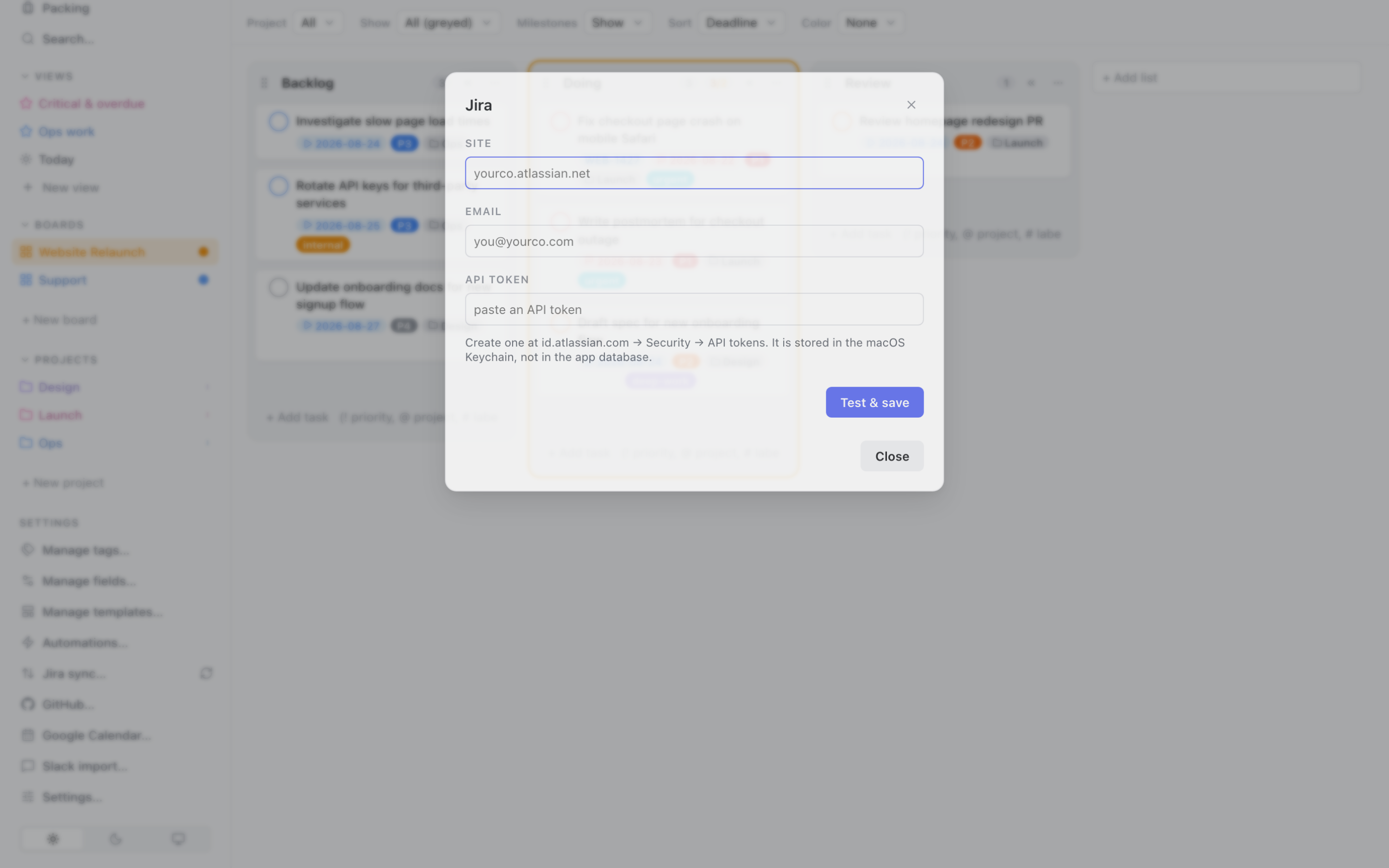
- Open the Jira manager (sidebar status indicator or Settings).
- Enter your Jira URL and an API token (create one from your Jira account's API tokens page).
Imports
- Create one or more named imports, each with a JQL query (e.g.
assignee = currentUser() AND statusCategory != Done). - Pick a destination board + list. Matching issues appear there as cards with a status pill showing the Jira status.
Two-way sync
- Status changes flow both ways (Clarity HQ ↔ Jira).
- Auto-sync runs about every 10 minutes; a manual sync button is available.
Unlinking
- If you drag a card out of its import's JQL results, it becomes unlinked — kept in Clarity HQ but no longer synced.
Use cases: triage your Jira queue inside your personal board, mix Jira issues with non-Jira tasks, and update status without leaving Clarity HQ.
GitHub
Read-only branch/PR status shown on Jira-linked cards.
Setup
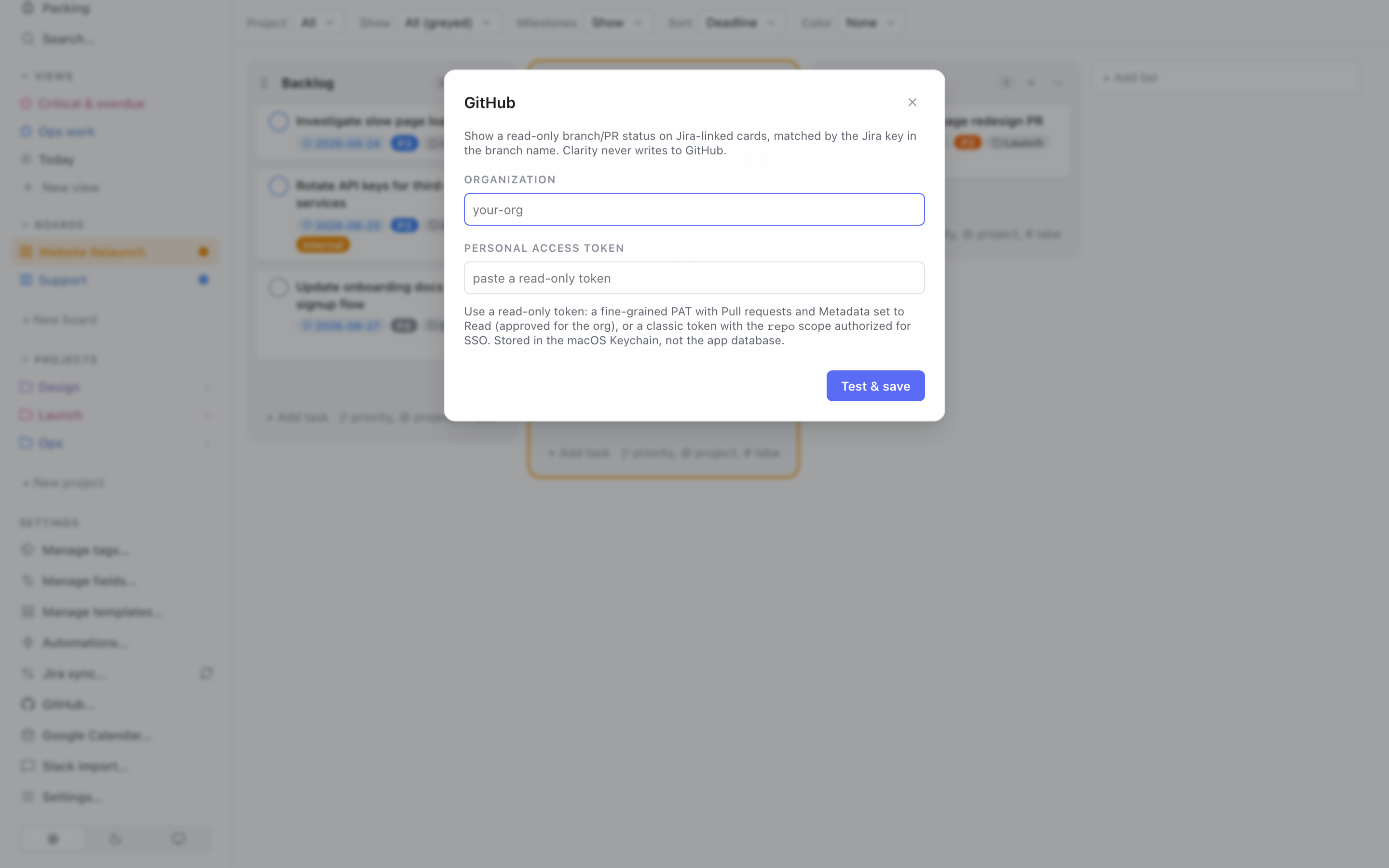
- Open the GitHub manager (sidebar status indicator or Settings).
- Enter your GitHub organization and a read-only personal access token — a fine-grained PAT with Pull requests and Metadata set to Read (approved for the org), or a classic token with the
reposcope authorized for SSO. - Click Test & save. Your token is stored in a permission-restricted local file, not in the app's synced database.
What it shows
- Applies only to cards already linked to a Jira issue (see Jira above) — GitHub matches the task's Jira key against branch names on open (and recently closed) pull requests across the org.
- A status glyph appears on the card: PR clean (open, no unresolved review comments), PR attention (open, unresolved review comments), or Merged/closed.
- Click the glyph to open the pull request on GitHub. Clarity HQ never writes to GitHub.
- Refreshes automatically about every 10 minutes; a Refresh now button in the GitHub manager triggers an immediate sync.
Use cases: see at a glance which Jira-linked cards have a PR waiting on your review versus one that's already shipped.
Google Calendar
Two-way sync between your tasks and your calendar.
Setup
- Open the Google Calendar manager.
- Complete the Google OAuth sign-in (opens your browser). Your credentials are stored in a permission-restricted local file, not in the app's synced database.
- Choose which calendars to sync.
What syncs
- Tasks that have a dated time, and focus sessions you create in the Day Planner, push out as calendar events.
- Calendar events can be pulled in.
- Per calendar, choose whether its all-day and/or timed events show up in day-scoped views (e.g. Today) and the mobile Today screen — toggle this in the calendar's row in the manager.
- Sync runs about every 10 minutes (staggered after Jira) plus a manual trigger.
Use cases: see your tasks and meetings together, block focus time that shows up on your shared calendar, and avoid double-booking.
Slack
Turn a Slack message into a task.
Setup
- Open the Slack manager and connect your Slack workspace.
Importing
- In Slack, copy a message's permalink (message ⋯ menu → Copy link).
- In Clarity HQ, paste the permalink, choose a destination board + list, and a task is created from the message.
Use case: capture "can you handle this?" Slack asks as real tasks without retyping them.
Obsidian Bases
Bind a task to an Obsidian Bases view to see how much work is left, without leaving Clarity HQ. Desktop only.
Setup
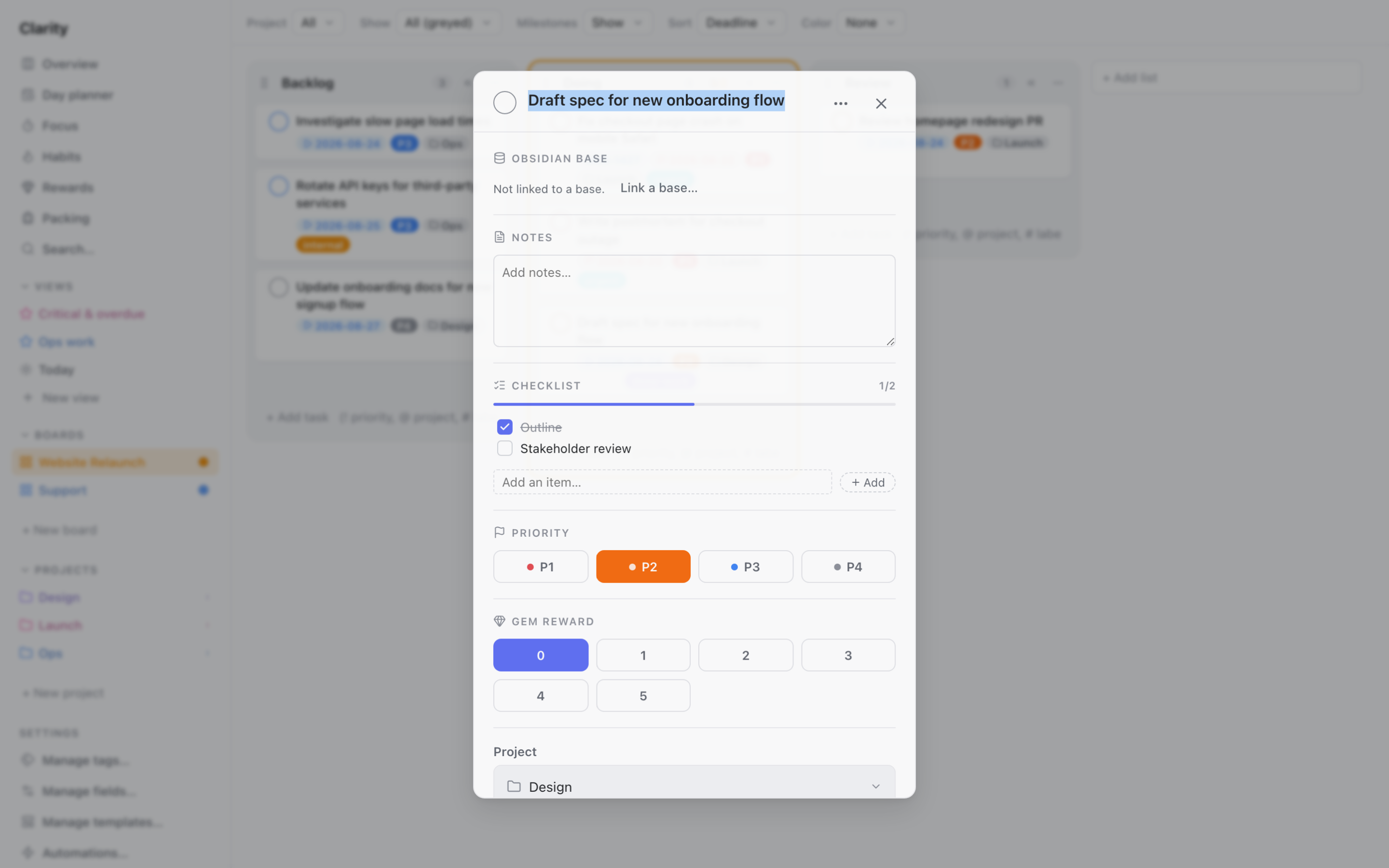
- Open a task and find the Obsidian Base section, then Link a base….
- Choose a
.basefile (Obsidian's Bases plugin file) from the list, or type its path. - Enter the view name defined inside that base.
- Optionally set a vault name — leave blank to use the active vault.
What it shows
- Next up — the first item in the view's results.
- Remaining — how many items the view currently matches.
- Read-only: Clarity HQ queries the base via Obsidian's own CLI and never writes back.
- Refreshes automatically about every 10 minutes; a Sync now button in the task re-syncs immediately.
- Desktop only: because syncing talks to a locally-running desktop Obsidian install, it doesn't run at all when you're using Clarity HQ's mobile view.
Use cases: track progress on an Obsidian-managed reading list, backlog, or project note straight from its linked Clarity HQ task.
AI assistant (CLI)
Clarity HQ ships a command-line tool so AI assistants (e.g. Claude Code) and scripts can read and manage your tasks using the same database the app uses. Changes it makes appear in the app automatically.
Installing the CLI
- Open Settings → Advanced, where the Command-Line Tool section walks through installation (macOS only; nothing is installed until you do this).
- Node.js on PATH — required first. If it's missing, Settings shows a link to nodejs.org.
- Click Install to download the CLI matching your app version and link it onto your PATH (this asks for your admin password once). If it's already installed but out of date, the button reads Reinstall.
What it can do
Read
workspace— discover your boards, lists, projects, tags, custom fields, milestones, views, and the CQL guide. (Run this first to learn your names.)task query— find tasks with a CQL filter.task get— fetch one task in full.view run— run one of your saved views.
Write
task create,task update,task complete,task deletemilestone-createtag,project(create / rename / recolor / delete)task bulk-create,task bulk-update(create or update many tasks at once —bulk-updatecan target tasks by a CQL filter)
Example asks
- "What P1 tasks are overdue across all my boards?" →
task query 'priority = 1 and deadline is overdue'. - "Create three subtasks under the v1 milestone." →
task bulk-create. - "Push every task tagged #errands to next week." →
task bulk-updatefiltered bytag:errands.
For technical details (command list, schemas, setup), see cli/README.md in the app's source.
macOS Shortcuts
Clarity HQ registers the clarity:// URL scheme on its Mac app, so the Shortcuts app (or Siri, or a keyboard shortcut, or a script) can create tasks without opening Clarity HQ first.
Simplest version — one line, full Quick Add syntax:
- Shortcuts → New Shortcut.
- Add Ask for Input (Text) — this is where you'll type the task, e.g.
Buy milk tomorrow @Groceries #errand !2. - Add URL Encode (search the actions library), fed by the previous step's output.
- Add Text, set to
clarity://quickadd?text=followed by the encoded result from step 3. - Add Open URLs, passing the composed text from step 4.
- Name the shortcut (e.g. "Quick Add to Clarity HQ") and save.
Run it from Spotlight, a keyboard shortcut (Shortcuts → shortcut details → add one), or say "Hey Siri, Quick Add to Clarity HQ."
Structured version — separate fields instead of typed syntax: build the URL the same way, but add more query params instead of (or alongside) text: &project=<name>, &tags=<comma-separated names>, &board=<name>, &priority=<1-4>, &doDate=<YYYY-MM-DD>, &deadline=<YYYY-MM-DD>, &startDate=<YYYY-MM-DD> — each URL-encoded the same way. These win over anything typed in text, so a shortcut can mix a free-text title with a Choose from Menu step for the project. Project/tag/board names that don't match an existing one are ignored rather than failing the task.