Habits
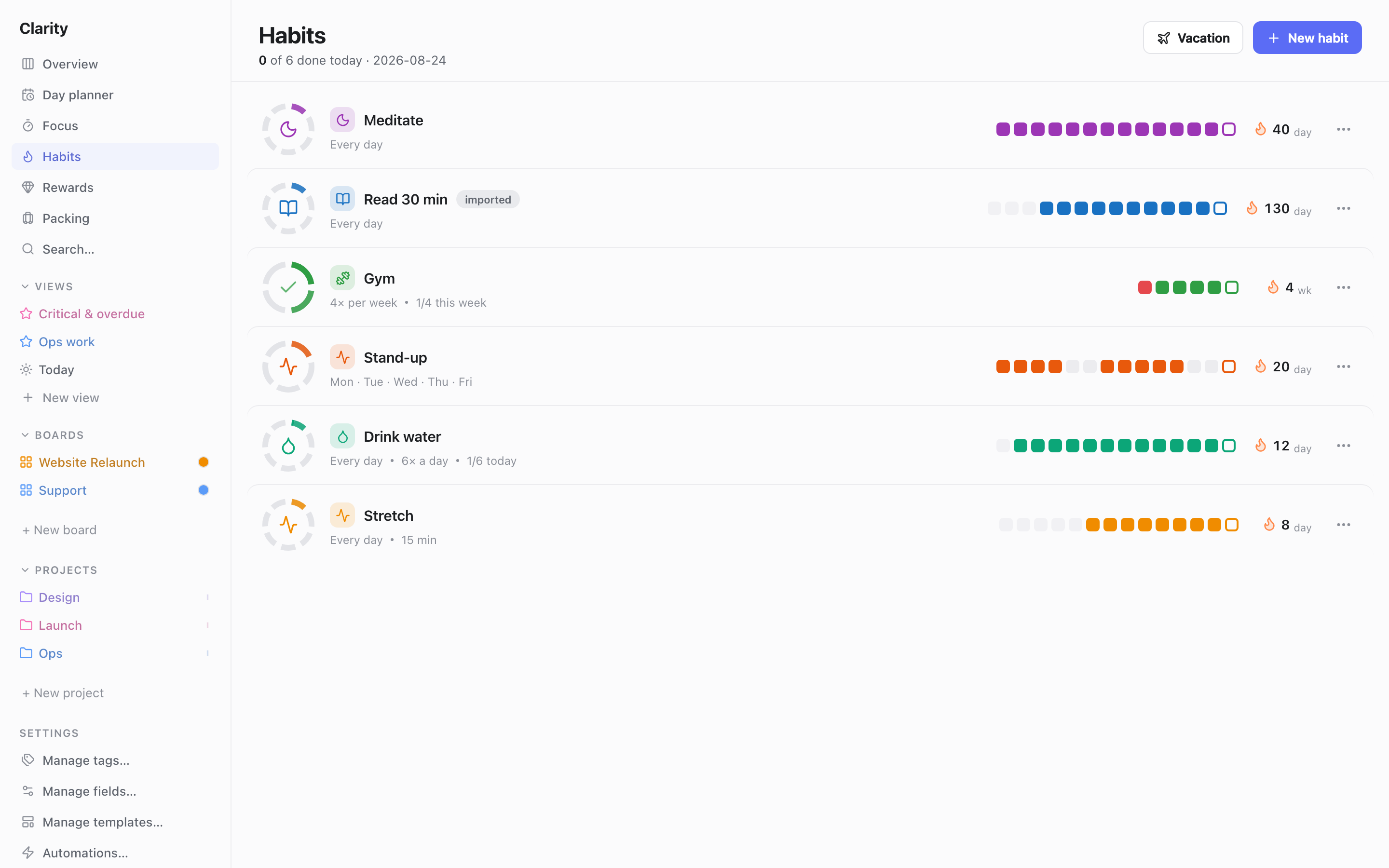
Track daily and weekly habits with streaks, a weekly-progress ring, skips, vacation mode, and archiving.
Open it from the Habits entry in the sidebar (flame icon).
Creating a habit
- Click New habit.
- Give it a Name, pick an Icon and Color.
- Choose how often it repeats (see Frequency below) and, optionally, what counts as "done" (see Goals below).
- Set a Started on date. If you're already partway through a streak elsewhere, enter a Starting streak so the ring picks up where you left off instead of starting at zero.
Frequency
Every habit is one of three schedules:
- Daily — scheduled every day.
- Times / week — a target number of sessions per week (e.g. 4× a week), logged on any day you like. Progress shows as X/Y this week and resets each week.
- Specific days — fixed weekdays (e.g. Mon/Wed/Fri). Only those days are scheduled; other days are rest days and don't affect your streak.
Goals — what counts as "done"
By default, a habit is binary: one tap marks the day complete. Two richer goal types are available:
- A count — log a number of units per day (e.g. drink water 6× a day). Use the + / − stepper to log each one; the day completes automatically once you hit the target.
- A timer — a focus session of a set length (e.g. 15 minutes). Tap Start focus on the habit to launch a Focus Timer session for that habit; finishing it marks the day complete automatically.
Streaks and logging
Each scheduled day can be logged as:
- Complete — extends the streak by one.
- Skip — holds the streak (doesn't break it), but a second skip in a row counts as a fail and resets the streak to zero. A single skip followed by a completion is safe.
- Fail — resets the streak to zero.
A scheduled day left unlogged in the past is treated as a fail once it's over — so backfill or skip days you miss rather than leaving them blank.
Tap a habit's ring to complete it for today; press and hold (or right-click) for more options — log a session, skip, mark failed, or clear today's entry. The ring, streak badge, and a short history strip show recent status at a glance; opening a habit shows a 6-week calendar you can tap to edit any past day.
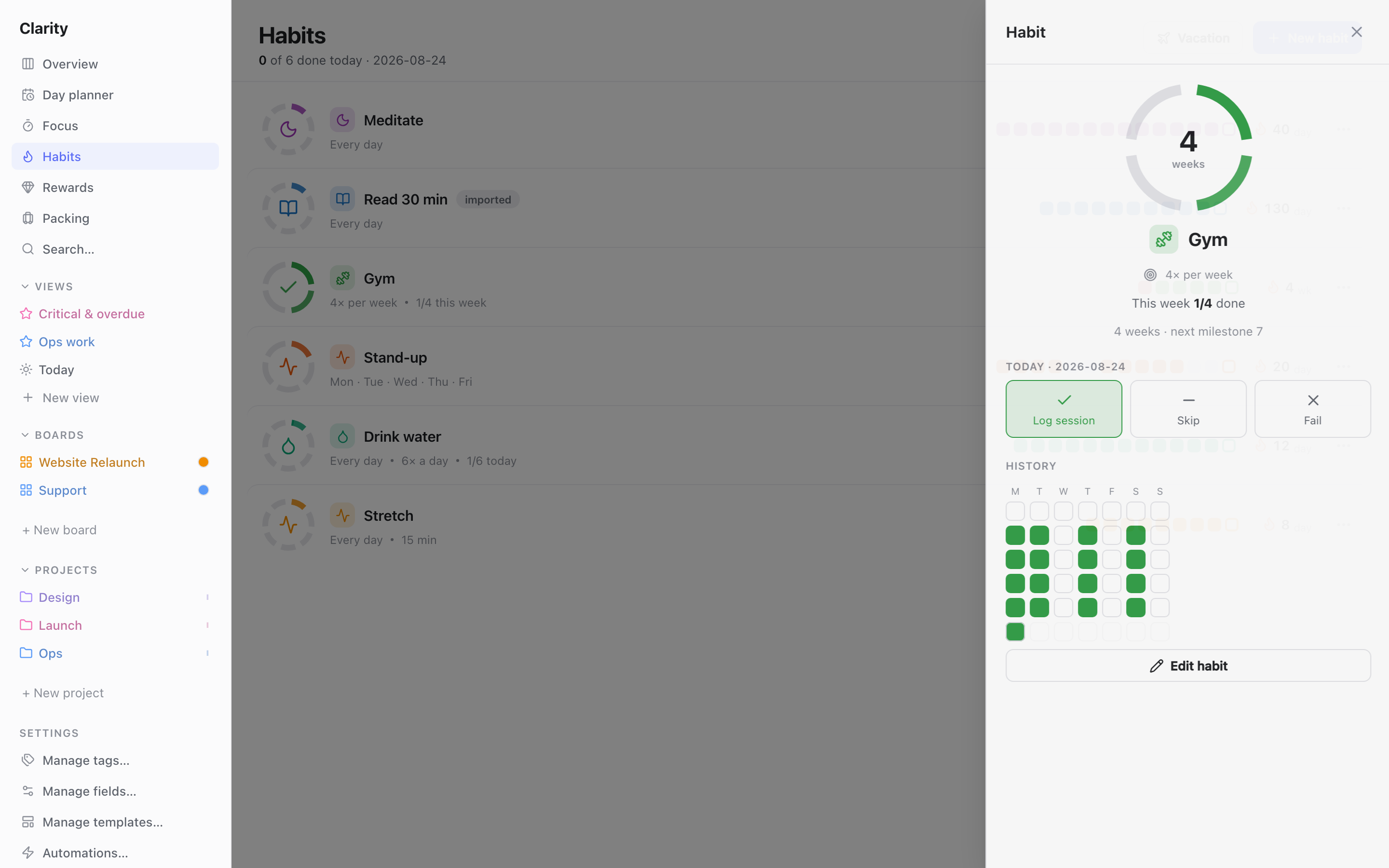
Streaks are milestone-aware — reaching 7, 14, 30, 60, 100, 180, 365, 730, or 1000 days (or weeks, for a times-per-week habit) is tracked and shown as your next target.
Completing a habit day (or hitting a count goal's daily target) also earns a coin — see Rewards.
Vacation mode
Click Vacation in the header, toggle it on, and set a From/Until date range. While active, every habit is auto-skipped for those dates — streaks are frozen, never broken. Turn it off (or let the end date pass) to resume normal tracking.
Archiving
Use a habit's ⋯ menu to Archive it — it moves to a read-only Archived section, stops appearing in today's list, and its streak is protected (not auto-failed) for as long as it stays archived. Restore it any time to pick the streak back up; a habit can be archived and restored more than once over its life.
Android home-screen widget
If you use Clarity HQ on Android, a home-screen widget can show your habits as compact streak rings alongside your task list. Tapping a ring completes that habit for the day directly from the home screen — no need to open the app. It works offline and syncs in the background when you do have a connection. (Desktop has no equivalent widget.)