Boards & Tasks
The core of Clarity HQ: boards hold lists, lists hold task cards.
Boards
A board is one Kanban workspace with its own lists and sorting.
- Create / switch: click + in the sidebar to add a board; click a board to switch, or press 1–9 for the 1st–9th board, or [ / ] to move left/right.
- Rename / reorder: double-click a board name to rename; drag boards to reorder.
- Icon: pick a board icon from the icon picker.
- Sort mode: each board sorts its cards by manual (drag to arrange), priority, deadline, do date, start date, or created. Choose it from the board header.
- Card color mode: see Card colors below.
Lists (columns)
Lists are the columns within a board (e.g. To Do / Doing / Done).
- Add a list with +, reorder by dragging, rename inline, and collapse/expand or remove lists.
- Lists can carry Column Rules that highlight them when they get too full — see Settings & features → Column Rules.
- A list can have a default template (list menu → List template, then pick one) that fills in unset fields on every task you create in it — see Settings & features → Templates.
Cards (tasks)
A card is a task. Create one by typing in a list's quick-add box, or with the Quick Add popup (a). Click a card to open the full editor; drag it to move between lists or reorder; right-click it for quick actions (date, priority, project, milestone, tags, fields) without opening the editor.
Each card keeps to one quiet line of details under its title: the due date first (shown as Today, 2d overdue, …), then the Jira key, tags, checklist progress, custom fields, project and milestone — up to three, with a +N for the rest (hover it to see what's hidden). Priority is shown by the color of the check-circle. Hover a card and click + to add or change a date, priority, project, tags or fields without opening it.
Quick Add
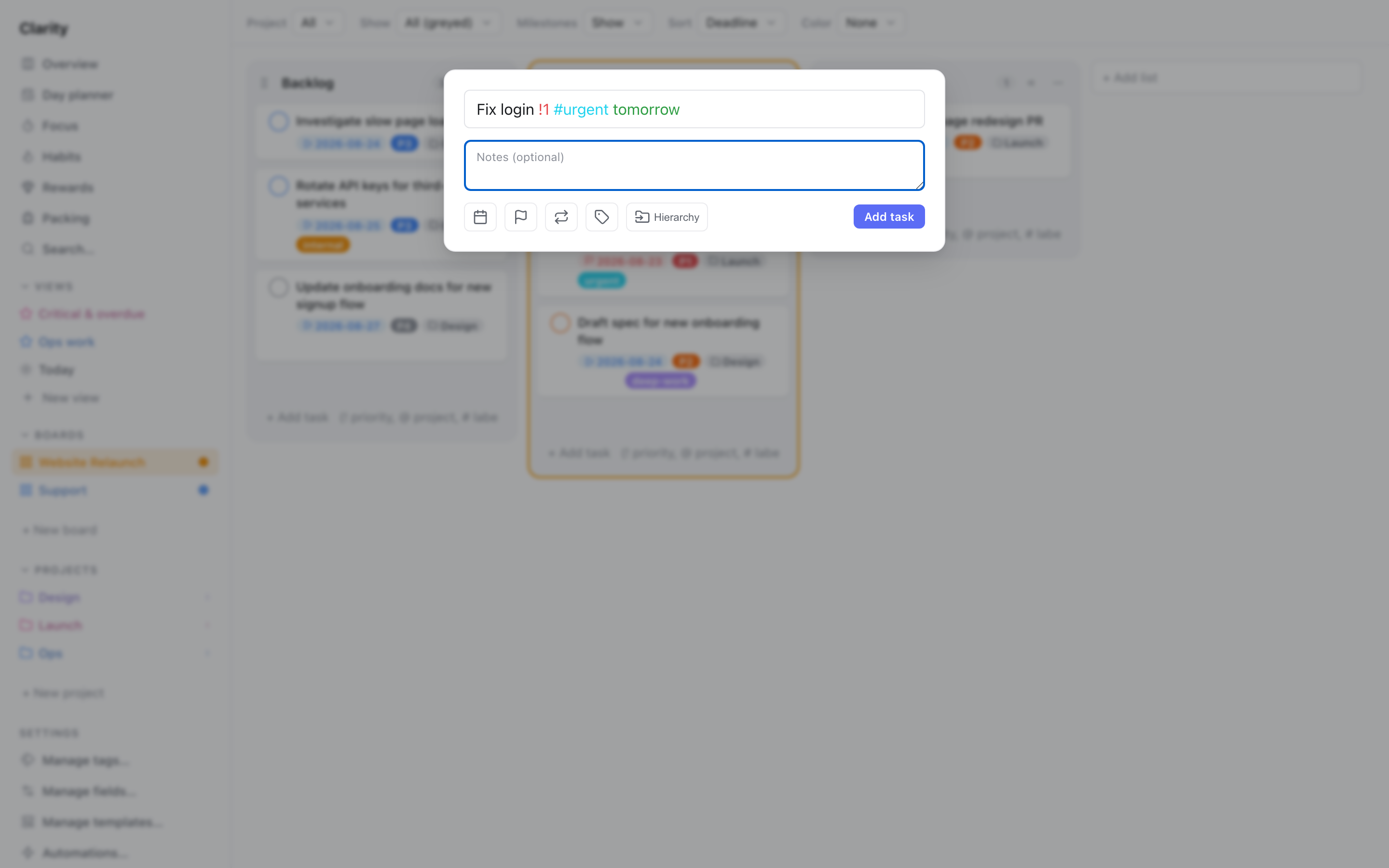
Press a for the Quick Add popup, or type in any list's quick-add box. As you type the title, Clarity HQ recognizes shorthand tokens and lifts them out of the title:
| Token | Effect | Example |
|---|---|---|
!1 !2 !3 !4 | Set priority P1–P4 | Fix login !1 |
#tag | Attach a tag (you can add several) | Email #work #urgent |
@project | Assign to a project | Draft spec @website |
$board | Set the destination board | Fix login $engineering |
~template | Apply a template | ~standup notes |
| natural-language date | Set the do date | Call Sam tomorrow, Review in 2 days, Pay rent May 25, Plan last friday of may |
Notes on matching:
- Tags, projects, boards, and templates only match things that already exist (case-insensitive, spaces ignored). If nothing matches, the token just stays in the title as plain text.
- If you type more than one priority, project, board, or template, only the first one counts. Tags are the exception — you can add several.
- Dates are always read as coming up next, never in the past — "tomorrow", "in 3 months", a weekday, or a specific date all work. A bare month name or a bare time on its own is ignored on purpose, since it's too vague to guess.
- In the popup, if you also use the date/priority/project/tag icon pickers, they override whatever you typed for that attribute (tags are combined instead). The Board picker overrides
$boardthe same way. $boardonly works in the Quick Add popup (a), which shows a destination list/project picker to match it against. It doesn't work in a list's inline quick-add box, since that box already knows its destination.
The task editor
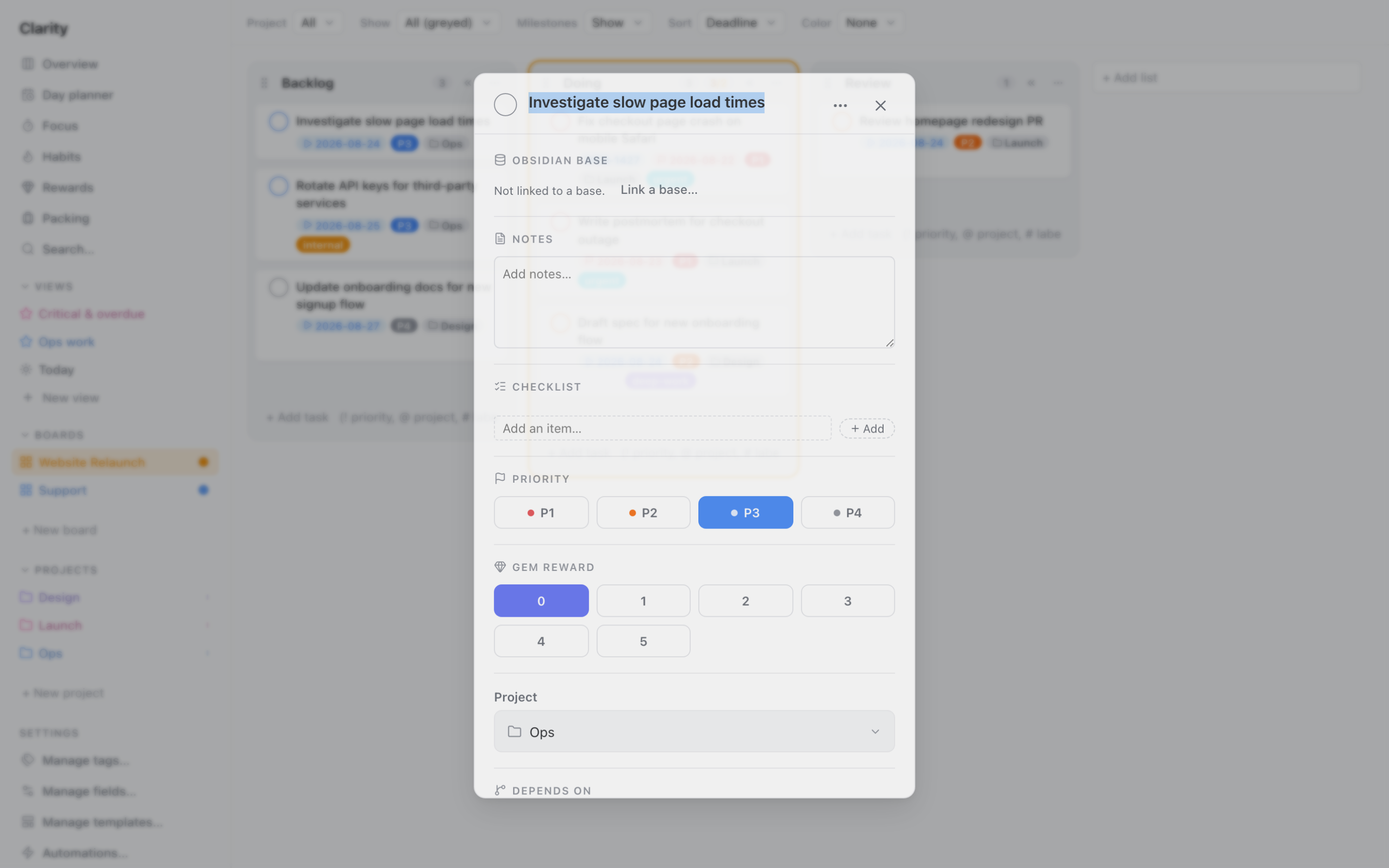
Click a card to open the detail editor. Fields available (less common ones, like Start date and Flexible, appear as rows once you add them with + Add field):
| Field | Notes |
|---|---|
| Title | The task name. |
| Notes | Free-text description. |
| Priority | P1–P4, or none. |
| Start date | When the task becomes available (before it, the task is deferred). |
| Do date + time | When you plan to work on it; the time anchors time-based reminders. |
| Deadline + time | When it's due; the time anchors time-based reminders. |
| Duration | Planned minutes (estimated effort). (if the Task Duration feature is on) |
| Checklist | Done/not-done sub-items. (if Checklist is on) |
| Tags | Multiple color-coded labels. (if Tags is on) |
| Project | Group the task into a project. (if Projects is on) |
| Milestone | Attach the task to a milestone (parent). |
| Depends on | Block this task until one or more other tasks on the same board are done. (if Task Dependencies is on) |
| Custom fields | Structured metadata you've defined. (if Custom Fields is on) |
| Reminders | Time-based or activity nudges. (if Reminders is on) — see Settings & features → Reminders |
| Recurrence | Make the task repeat. — see Settings & features → Recurring tasks |
| Flexible | Roll the do date to today, or expire the task, instead of it going overdue. (if Flexible Tasks is on) — see Settings & features → Flexible tasks |
| Jira link | Status syncs with the linked Jira issue. — see Integrations → Jira |
| Obsidian Base | Link the task to an Obsidian base + view to show Next up / Remaining. (if Obsidian Bases is on) — see Integrations → Obsidian Bases |
Press ⌘↵ (or Ctrl+↵) to save, Esc to close.
Availability: available / deferred / blocked
Every active task has a computed availability (you don't set it directly):
- Available — ready to work on now.
- Deferred — its start date is still in the future.
- Blocked — something else needs to happen first. This can mean:
- it's a milestone child and it isn't its turn yet,
- it's part of a sequential project/milestone and the tasks before it aren't done, or
- it lists other tasks in its Depends on field that aren't done yet.
Use the board header's Show control to either hide unavailable tasks or show them greyed out.
Bulk actions
Select multiple cards (Ctrl/Cmd-click or Shift-click) to reveal the bulk action bar, where you can move them to a list/project, assign a milestone, add/remove tags, set priority, mark done/reopen, or delete — all at once.
Card colors
The board header's Card color control tints cards by a chosen dimension:
| Mode | Color comes from |
|---|---|
| None | No tint. |
| By Project | The project's stripe color. |
| By Date | Bucketed: overdue / today / future (uses the deadline, falling back to the do date). |
| By Priority | The P1–P4 colors. |
| By Custom Field | A select field's option colors. |
Milestones
A milestone is a parent task that groups child tasks and tracks their progress (done/total). Assign a task to a milestone from its editor or the bulk bar. Milestones can be sequential (children unlock in order) or parallel (all available at once), which feeds the availability rules. Milestones also appear on the project timeline — see Settings & features → Projects. Right-click a milestone for quick actions: create task, complete, delete.